
MGAS Tool – User manual
Version 2.0 - November 2026 · Download the PDF · Watch the demo video (4 min) · Get it from Microsoft Store · Versione italiana
Preface
MGAS Tool is a Windows application that streamlines trading on the Gas Market (MGAS) run by the Italian energy market operator GME (Gestore dei Mercati Energetici). It is designed for traders who work every day for one or more companies and need to enter buy and sell offers quickly, on time and under control, especially close to the 17:30 close, when the price that serves as the PSV reference is formed.
The tool works with the trader's own GME enablement and digital signature, exactly as on the MGAS platform, in compliance with the MGAS Rules (Disciplina) and the Technical Rules (DTF): it does not replace them.
What it does
- Live market view: always up-to-date book of the MGP, MI, WE and WD products, with rising prices in green and falling prices in red.
- Immediate offers for one or more companies, at a fixed price or at market price (best book price ± a configurable delta), with the GME outcome in about one and a half seconds.
- Scheduled offers for 17:29:58 (GME time) or for another time of the day: they are sent even with the program closed and the Windows user logged off.
- Amend and withdraw open offers directly from the offers table, and close residual offers within the PSV range.
- Guarantee control for every company: before sending you know how much each order uses; orders not covered are blocked.
- Wash trading prevention on the same company: orders that would cross each other are blocked.
- Market analysis: expected PSV, average prices by gas day, trade chart and trade list, quick link to the TTF quotation.
- Automated routine: daily authorisation at 10:00, scheduled sends, result e-mails, daily backup.
- Audit trail: every order, signed message and GME response is archived for 5 years, separately for each company.
Who it is for
This manual is intended for the enabled traders who use the tool on behalf of the company or companies whose MGAS activity they manage, and for whoever installs it on the PC. Chapter 1 covers requirements, data to prepare and installation; chapter 2 presents the system, chapters 3 and 4 describe the functions and daily use, chapters 5 and 6 the automations and controls, chapter 7 archives and backup; then troubleshooting, support information and a glossary.
Language
Windows, messages and e-mails are in the language chosen by the user (English or Italian): it is asked at the first start and can be changed in Settings → 1. Smart card and access (applied at the next start). The log files and the Log tab are always in Italian, like the GME platform: the main outcomes are ACCETTATA (accepted), RIFIUTATA (rejected), DA VERIFICARE (to be checked) and NON INVIATA (not sent). Market data read from the GME website (for example acquisto = buy, vendita = sell, abbinata = matched) are shown as GME publishes them.
Compliance checks (for example blocking wash trading on the same company) only cover the cases the tool can recognise: compliance with the MGAS Rules, REMIT and the other market rules always remains with whoever trades.
1. Installation
This chapter describes what is needed to use MGAS Tool, which data to obtain before starting and how to install and configure it. With all the data at hand, installation takes about 15 minutes.
1.1 Requirements
Operational and contractual requirements
- Enablement to the GME Gas Market (MGAS) for the trader, with the companies they trade for associated with their user on the platform.
- Digital signature device (smart card or USB token) in the trader's name, with the authentication certificate (CNS) and the qualified signature certificate, both registered with GME.
- MGAS Tool licence valid for the company and for the Windows user who will run the program, issued by the supplier.
- Guarantees lodged with GME adequate for the trading activity: the tool checks them before every send but does not manage them.
Technical requirements
| Item | Requirement |
|---|---|
| Operating system | Windows 10 or Windows 11, 64-bit. No other software is needed. |
| Windows user | Password-protected account: the password is needed once, to enable the automatic sends with the user logged off. |
| Rights | PC administrator rights for installation and for every update. Daily use does not require them. |
| Smart card | Bit4id reader or token with its software installed; with the smart card inserted, the certificates must appear among the Windows personal certificates. |
| Disk space | About 160 MB for the program, plus a few MB per month for logs and archives. |
| Network | Internet access to the GME MGAS platform, the supplier's licence service and, if used, the mail server. |
| Power | PC switched on at the times of the automatic sends: disable sleep (standby) during market hours. |
1.2 Data to obtain before starting
Confidential information (PIN, licence key, mail passwords and secrets) is stored only in encrypted form, usable only by the same Windows user on the same PC.
| Data | Provided by | Purpose |
|---|---|---|
| Windows user name | The user. | The licence is valid for one company and one Windows user: it must be sent to the supplier before installation. |
| Licence company code | The supplier. | Entered at every start (the last one used is proposed). |
| Licence service key | The supplier, together with the licence. | Entered only once. |
| Smart card and PIN | The trader. | To access MGAS and sign offers, amendments, withdrawals and the authorisation. The PIN is remembered so that the automatic sends work without intervention. |
| Company for the daily authorisation | The trader: any one of their companies. | Every day at 10:00 the tool enables the user for the market session for all their companies. |
| Windows password | The user. | To enable the automatic sends with the user logged off; it is kept by Windows, not by the program. With a Microsoft account it is the password of that account (not the Windows Hello PIN). |
| Mail parameters (optional) | The IT manager. | To receive the result e-mails: with SMTP server, port, security, user, password and sender; with Microsoft 365 tenant ID, ID and secret of an application with the Mail.Send permission, and the sender mailbox. In both cases the recipients. |
| Backup folders (optional) | The IT manager or the user. | Network folders or folders of a cloud service synchronised on the PC (OneDrive, Google Drive, SharePoint) that receive a daily copy of logs, messages and orders, to be kept for 5 years. |
1.3 Installing the program
- Install the smart card software (if not already present), insert the smart card and check that the CNS and signature certificates appear among the Windows personal certificates.
- Open the installation package MGAS_Tool_x.y.z.msi, supplied on request by Mariano Sprotetto (mariano.sprotetto@msprotetto.com).
- If the “Windows protected your PC” warning appears, choose More info, check that the publisher is SPROTETTO MARIANO and then Run anyway.
- Confirm the Windows request for administrator rights.
When finished, the “MGAS Tool” shortcut is on the desktop and in the Start menu. The tool data (configuration, logs, archives) are never deleted, not even when the program is uninstalled.
1.4 First start and guided setup
- Start MGAS Tool with the smart card inserted.
- Choose the program language (English or Italiano).
- Enter the licence company code and, the first time only, the licence service key.
- The Settings window opens as a guided setup: fill in the tabs described below and press Save.
- If the PIN was not entered in the settings, the program asks for it now. Then the main window opens.
| Tab | What to set |
|---|---|
| 1. Smart card and access | Choose the language, the access certificate (CNS) and the qualified signature certificate, enter the PIN, press Test MGAS login and choose the company used for the daily authorisation. |
| 2. E-mail notifications | Choose No e-mail, SMTP or Microsoft 365, fill in parameters, sender and recipients (separated by ;) and check with Send test e-mail. |
| 3. Backup | Enter the backup folders (chapter 7). Leave empty for no backup. |
| 4. Scheduled tasks | See the next section. |
The settings can be reopened at any time with the Settings button of the main window.
1.5 Enabling the automatic sends
The 10:00 authorisation, the 17:29:58 send, the orders at a chosen time and the backup are enabled with a single button:
- In Settings → 4. Scheduled tasks press Create / update the tasks.
- Enter the user's Windows password when asked.
- Check that all four tasks are created, with the date of the next run.
From the same tab the tasks can be disabled, enabled again or removed. If the Windows password changes, press Create / update the tasks again and enter the new password.
1.6 Final check
- In the main window check that the book and the user's companies appear and that the status shows “fast send: ready”.
- Send a test offer of 1 MW at a price that cannot be executed (for example a sell well above the best bid) and check in the Log the outcome “ACCETTATA” (accepted) and the arrival of the e-mail.
- Withdraw the offer immediately from the Open offers tab.
1.7 Program updates
The program reports new versions at every start and, at any time, with the Check for software updates button at the bottom of the Settings window (next to it is the version in use).
- If a newer version is available, a message with the changes appears.
- Yes = install now; No = later: the update is offered again at the next start.
- Confirm the Windows administrator request: when finished the program reopens in the new version.
Only intact updates signed by the supplier are installed. Configuration, archives and scheduled tasks stay unchanged.
1.8 Uninstalling
First remove the tasks from Settings → 4. Scheduled tasks → Remove, then uninstall MGAS Tool from Windows Settings → Apps. The tool data are not deleted: they contain the archives to be kept for 5 years.
2. System overview
MGAS Tool includes a main window for the trader and some automations that run by themselves at the set times, even with the program closed.
| Component | What it provides |
|---|---|
| MGAS Tool window | Book, immediate and scheduled orders, open offers, guarantees, statistics, log. |
| Fast send | Send, amendment and withdrawal in about one and a half seconds from the click to the GME outcome. |
| Daily authorisation | Every day at 10:00 it enables the user for the market session, once for all companies. |
| 17:29:58 send | Sends the scheduled orders at 17:29:58 by the GME clock. |
| Orders at a chosen time | Sends at the chosen time the orders scheduled for another moment of the day. |
| Backup | Every morning copies logs, messages and orders to a company network or cloud drive. |
| E-mail notifications | Summaries of sends, amendments, withdrawals, authorisation and warnings. |
Scheduled times are expressed in GME time: the send is on time even if the PC clock is a few seconds ahead or behind.
3. The main window
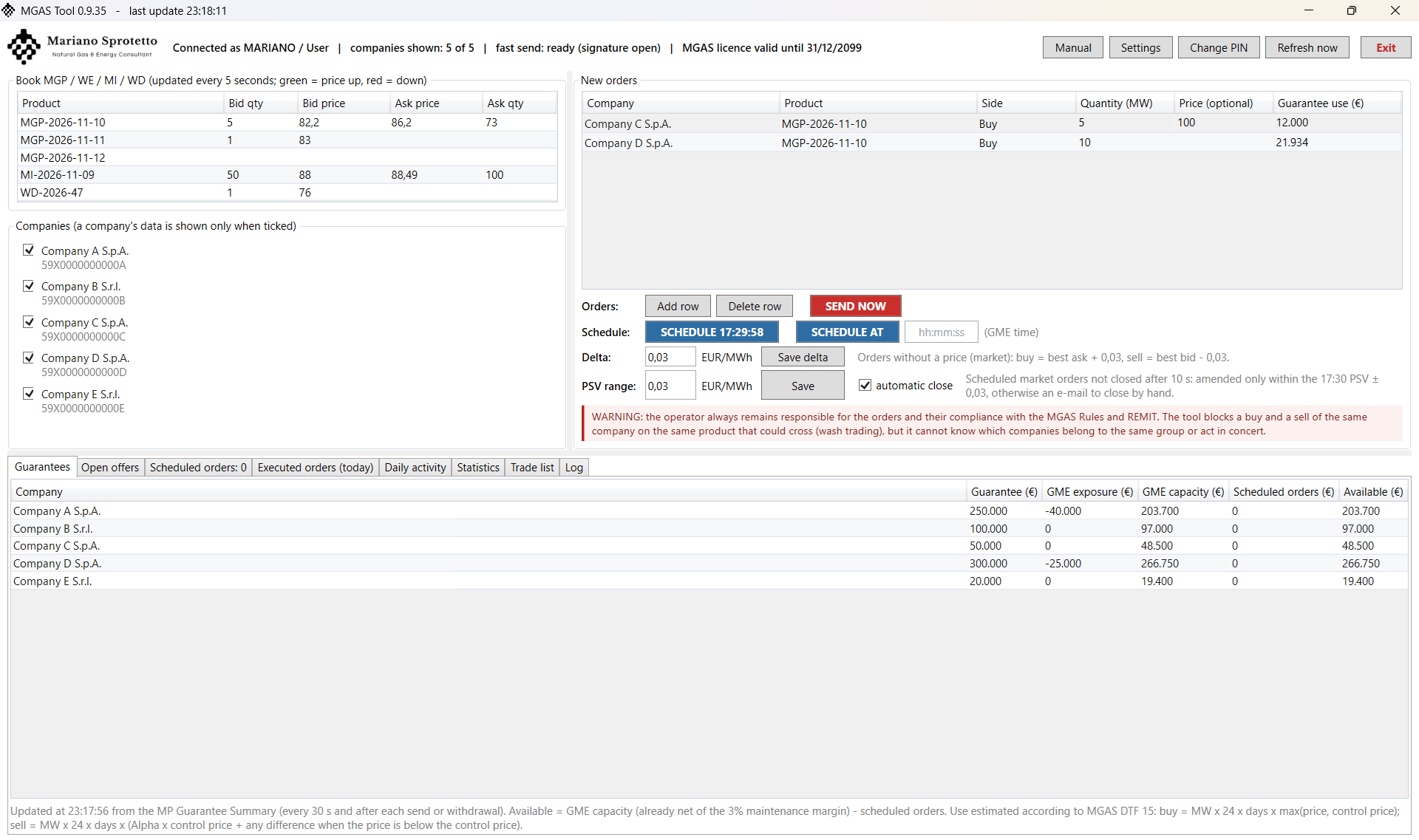
3.1 Start, licence and access
The tool starts with the MGAS Tool shortcut and opens full screen. At start it asks for the licence company code (the last one used is proposed) and, the first time, the smart card PIN; then it shows the market and the companies enabled for the user.
“Smart card not inserted”: the tool works only with the smart card inserted; close it, insert the card and reopen.
PIN rejected: the tool asks for the correct PIN. Warning: after 3 wrong attempts the smart card locks.
3.2 Top bar
| Item | Function |
|---|---|
| Status | Connected user, time of the last update, number of companies shown, fast send status (“fast send: ready”), licence expiry, any operation in progress. |
| Manual | Opens this manual online (www.msprotetto.com/mgas-tool/manual); without Internet it opens the installed PDF, also available from the Start menu (“MGAS Tool Manual”). |
| Settings | Language, smart card and access, e-mail notifications, backup and scheduled tasks (1.4 and 1.5); at the bottom the version in use and Check for software updates (1.7). |
| Change PIN | Updates the PIN remembered by the program, if the smart card PIN has been changed. |
| Refresh now | Refreshes all data immediately. |
| Exit | Closes the program, with confirmation. Scheduled orders stay active even with the program closed. |
3.3 Book MGP / WE / MI / WD
Shows, for every tradable product, the best bid and ask with their quantities (MW), updated every 5 seconds. The price is green with ▲ if it has risen and red with ▼ if it has fallen; the colour stays until the price changes again.
3.4 Companies box and confidentiality
Lists the companies the user is enabled for, with the GME operator code. The information of a company is visible only when the company is ticked: guarantees, scheduled orders, open offers, executed orders and daily activity. Companies that are not ticked do not even appear in the choice for new orders: useful, for example, when a client is watching the screen.
3.5 New orders
Each row is an order. Add it with Add row and delete it with Delete row.
| Column | Content |
|---|---|
| Company | Company for which the offer is sent (only among the ticked ones). |
| Product | Product in the book (e.g. MGP-2026-10-21, MI-..., WE-..., WD-...). |
| Side | Buy or Sell. |
| Quantity (MW) | Positive whole number of MW (MGAS Rules, art. 28.2). |
| Price (optional) | If entered, the offer is at a fixed price. If empty, the offer is at market price: buy = best ask in the book + delta; sell = best bid in the book - delta, at the time of sending. |
| Guarantee use (€) | How much the order uses of the company's guarantee according to MGAS DTF 15 (examples in section 6.1). It is the value on which the row is accepted or rejected. |
3.6 Market price delta
The Delta field (EUR/MWh) sets the offset from the book for market-price orders (default 0,05; from 0 to 5). Change it by typing the new value and pressing Save delta: it applies at once to immediate sends and to scheduled orders not yet sent.
Automatic close within the PSV range
The PSV range row (default 0,03 EUR/MWh, automatic close tick box, Save button) applies to scheduled market-price orders; fixed-price orders are never touched. If 10 seconds after sending an offer is not completely closed, the tool compares it with the 17:30 PSV of the product:
| Offer | Limit | What happens |
|---|---|---|
| Sell | PSV - range | If the best bid in the book is equal to or above the limit, the offer is amended to the limit for the residual quantity and closes against the bids in the book, at their price. |
| Buy | PSV + range | If the best ask in the book is equal to or below the limit, the offer is amended to the limit and closes against the asks in the book. |
| Outside range | - | No amendment: an e-mail “WARNING - close by hand” arrives with PSV, limit and best book price. |
Example (made-up data): market sell not closed, 17:30 PSV = 90,40, range 0,03, therefore minimum 90,37. Best bid in the book 90,38: the offer is amended to 90,37 and closes at 90,38. Best bid 90,30: no amendment and an e-mail to close by hand.
- The executed price does not get worse: the offer closes at the price of the offers in the book, up to the limit.
- The tool never closes against offers of the user's own companies: if one of them is at the best level, the offer is not amended and a warning arrives.
- Without an available PSV (no trade of the product since 17:30) nothing is amended.
- The amendment loses time priority and GME rejects it if the guarantee is not enough.
3.7 Send now
SEND NOW immediately sends the orders in the table. Before sending, the tool shows a summary with the price that will be applied and the guarantee check; the send starts only after confirmation. The outcome of each offer appears in the Log, the tables refresh at once and a summary e-mail arrives.
With several orders, all buys are sent first and then the sells; within each group, market-price orders first, then fixed-price ones. This order applies to all sends: immediate, 17:29:58 and at a chosen time.
GME discards an offer that would match an opposite offer of the same user, even of another company (code OF1000). For this reason, if in the same send the buy of one company and the sell of another on the same product could cross, the sell is sent as soon as the buy can no longer match it, at the market price of that moment. If this does not happen within 3 seconds, the sell is not sent (status NOT SENT in the summary e-mail) and must be decided by hand.
Buy and sell of the same company on the same product in the same send that would cross are blocked as possible wash trading (section 6.1).
3.8 Scheduling orders
SCHEDULE 17:29:58
Schedules the orders for the automatic send at 17:29:58 (GME time). After 17:27:30 the orders will be sent the following day (the tool reports it). If orders are already scheduled for the ticked companies, you choose whether to add or replace them.
SCHEDULE AT
In the box next to the SCHEDULE AT button, type a time of the day in GME time, for example 15:00 or 15:00:30, and press the button. Rules:
- only for the current day and at least 3 minutes after the current time;
- not in the 09:58-10:05 window (daily authorisation) or 17:25-17:32 (for 17:29:58 use the dedicated button);
- at least 3 minutes from another scheduled time; the same time can be reused;
- if at the scheduled time the PC is off or in standby, the orders are not sent late: they are marked “expired” and a warning e-mail arrives.
When scheduling too, buy and sell of the same company on the same product at the same time that would cross are blocked, including those already scheduled at that time (section 6.1).
3.9 The tabs at the bottom
Guarantees
For every ticked company: guarantee, exposure and capacity from the GME MP Guarantee Summary (net of the 3% maintenance margin), use of the scheduled orders and available = capacity - scheduled orders. Updated every 30 seconds and right after every send or withdrawal. Orders not covered by the available amount are blocked (section 6.1).
Open offers
Lists the offers still open of the ticked companies. Amend selected (one offer only) changes quantity and price: the amended offer loses time priority (MGAS Rules art. 28.7) and, if the new price crosses the book, it is executed. Withdraw selected withdraws one or more offers (multiple selection with Ctrl/Shift). Both ask for confirmation and produce a result e-mail.
For the offers still open (residuals) there are two buttons, each with a list in which you tick the offers to work on:
- Close residual offers: with the range typed in the PSV range ± box (for example 0,10) it applies the same rule as the automatic close (section 3.6). For each offer the list shows PSV, limit, best book price, new price and outcome; offers outside the range cannot be selected. When finished a result e-mail arrives.
- Withdraw residuals: withdraws the ticked offers, for example to trade the next day on the intraday market (MI).
Scheduled orders
All orders waiting to be sent, with the time (GME). Cancel schedule cancels the orders of the time of the selected rows or, without a selection, all those shown. Cancelled orders stay in the archive as “annullato” (cancelled).
Executed orders (today)
The day's matches of the ticked companies.
Daily activity
The GME operations (submissions, matches, residuals, withdrawals) of the ticked companies. By default it shows today; with From and To you choose another period (Today returns to the current day) and with Operation only the rows of one type are shown. Clicking the headers sorts the rows.
Export to Excel saves the rows shown in the same format as the official export of the GME website.
Statistics
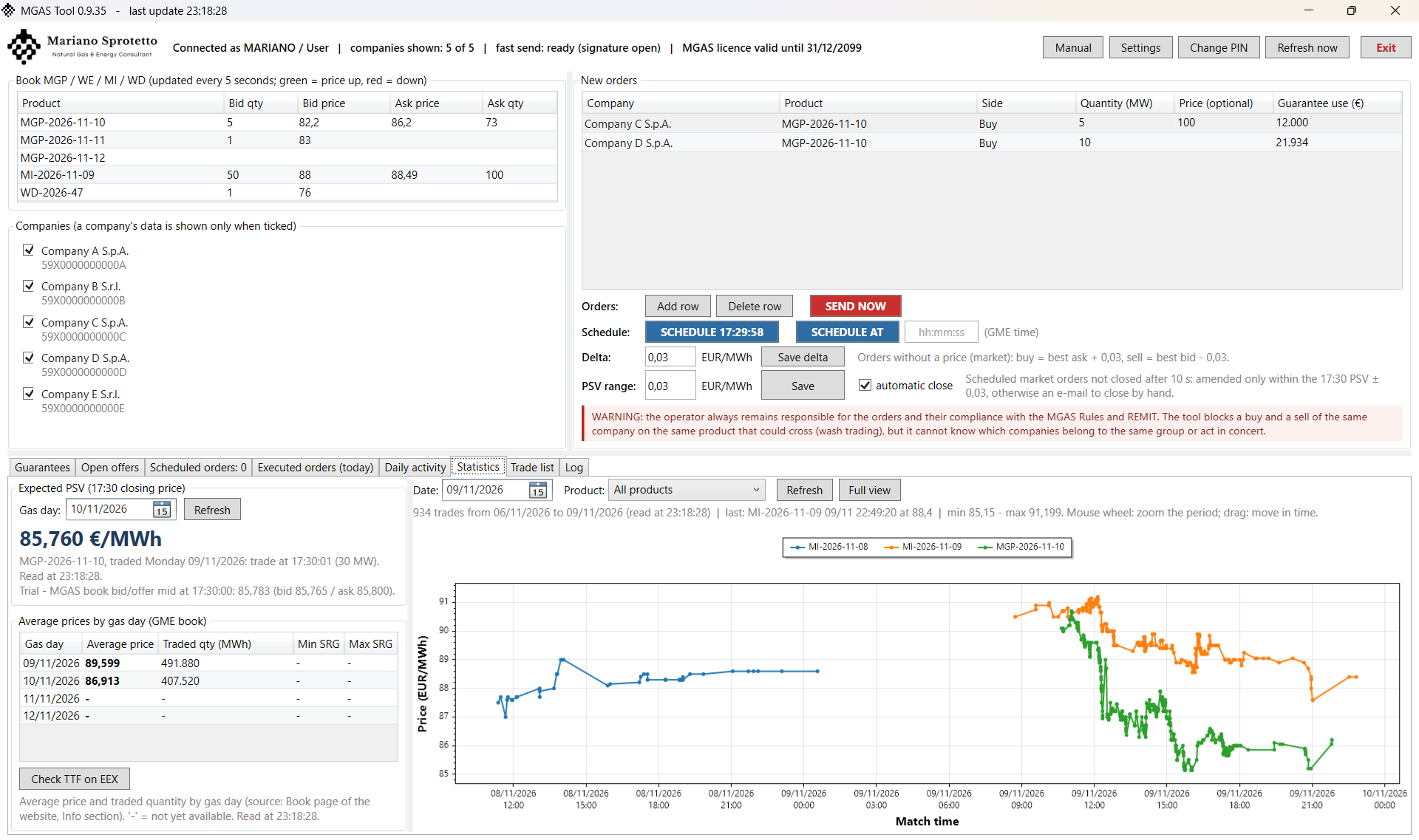
- Expected PSV: for the chosen gas day (tomorrow by default), it shows the price of the trades at 17:30:00 (or in the first following second) of the product that delivers it: WE of Friday for Saturday and Sunday, MGP of Friday for Monday, MGP of the previous working day on the other days. With several trades in the same second it shows the weighted average and the simple average. Before 17:30 of the trading day the price is not yet available; midweek holidays are not considered. Trial: below the price the mid between best bid and best ask of the MGAS book at 17:30:00 is also shown.
- Average prices by gas day: average price and total quantity, as in the Info section of the GME book.
- Trade chart: price and time of the trades of the whole market for the products tradable on the chosen date, with a product filter, details of each trade on mouse-over and zoom.
- Check TTF on EEX: opens in the browser the public EEX page of the TTF Day-Ahead.
Trade list
The trades of the whole market on one day in a table (time, product, quantity, price, daily value), with filters for date, time from / to and product, and a summary (number of trades, total quantity, weighted average price, minimum, maximum, last). Export to Excel saves the rows shown together with the summary.
Log
History of everything the tool does in the session: logins, sends with timings and outcomes, amendments, withdrawals, schedules, delta changes, warnings. The log is in Italian (see the Preface).
4. Daily operations
4.1 A typical day
| Time | What happens | Who |
|---|---|---|
| 09:30 | Backup of the logs and orders of the previous day (or at Windows sign-in, if the PC was off). | Automatic |
| 10:00 | Daily authorisation of the user, valid for all companies; result e-mail. | Automatic |
| During the day | Book monitoring, immediate sends, amendments and withdrawals; order scheduling. | Trader |
| Chosen times | Sending of the orders scheduled at a chosen time; summary e-mail. | Automatic |
| 17:29:58 | Sending of the scheduled orders (buys first, then sells), GME outcome and summary e-mail. | Automatic |
| 17:30:08 | Market-price orders not closed: close within the PSV range (section 3.6); an e-mail for each matched trade. | Automatic |
| After the send | Check the outcomes in the e-mails or in the Executed orders / Open offers tabs; if residuals remain, Close residual offers or Withdraw residuals. | Trader |
4.2 Step-by-step procedures
Sending an offer now
- Tick the company in the Companies box.
- Press Add row and fill in company, product, side and quantity; enter the price only if you want a fixed price.
- Press SEND NOW.
- Read the summary (price, guarantee) and confirm with Yes.
- Check the outcome in the Log: “ACCETTATA” (accepted) with the offer number; the offer appears in Open offers or in Executed orders.
Scheduling the end-of-day offers
- Fill in the rows as for an immediate send (normally without price, i.e. at market).
- Press SCHEDULE 17:29:58 and confirm.
- Check the Scheduled orders tab.
- Leave the PC on (not in standby) with the smart card inserted: the program can be closed.
- After 17:30 read the summary e-mail.
Scheduling at another time
- Fill in the rows.
- Type the time (GME time) in the box next to SCHEDULE AT, e.g. 15:00.
- Press SCHEDULE AT and confirm.
- At the chosen time the result e-mail arrives.
Amending or withdrawing an open offer
- Open the Open offers tab and select the offer (or several offers for a withdrawal).
- Press Amend selected (new quantity and new price) or Withdraw selected.
- Confirm; outcome in the Log within 1-2 seconds and a summary e-mail.
Closing or withdrawing residual offers
- Tick the companies and open the Open offers tab.
- To close: type the range in the PSV range ± box (e.g. 0,10) and press Close residual offers; to withdraw them: Withdraw residuals.
- In the list tick the offers to work on and confirm; outcome in the Log and an e-mail.
Cancelling scheduled orders
- Open the Scheduled orders tab.
- Select a row of the time to cancel (without a selection all those shown are cancelled).
- Press Cancel schedule and confirm.
4.3 Execution times
| Operation | Typical time |
|---|---|
| Immediate send (from the click to the GME outcome) | about 1,3-1,5 seconds |
| Withdrawal or amendment (from the click to the GME outcome) | about 1,3 seconds |
| Scheduled send | about 0,5 seconds per offer (offers are sent one after the other) |
| Data refresh | every 5 seconds (guarantees every 30 seconds) |
5. Automations and notifications
5.1 Scheduled tasks
The automations are enabled and managed from Settings → 4. Scheduled tasks (section 1.5):
| Task | When | What it does | Runs |
|---|---|---|---|
| Authorisation | every day 10:00 | Enables the user for the market session (if not already enabled) and sends the result e-mail. | also with the user logged off |
| Offers 17-29-58 | every day | Sends at 17:29:58 (GME time) the orders scheduled with SCHEDULE 17:29:58. | also with the user logged off |
| Scheduled orders | every minute | Sends the orders scheduled at a chosen time; reports the expired ones. | also with the user logged off |
| Backup | 09:30 and at sign-in | Copies logs, messages and orders to the backup folders (chapter 7). | with the user signed in |
In the Windows Task Scheduler the tasks keep their Italian names (Autorizzazione, Offerte 17-29-58, Ordini programmati, Backup) in the \MGAS Tool\ folder.
A manual send is always possible, even at the times of the automatic sends.
5.2 E-mail notifications
| Subject (example) | When |
|---|---|
| [MGAS] Authorisation dd/mm/yyyy: user enabled / user already enabled / ERROR | Every day after the 10:00 authorisation. |
| [MGAS] Offers dd/mm/yyyy: OK (n/n accepted) / WARNING | After every send (immediate, 17:29:58, chosen time), with the detail attached. |
| [MGAS] Trade confirmed: Company SELL Product N MWh at price | At every match: after a scheduled send and, with the program open, for the ticked companies. One e-mail per trade (can be disabled in Settings, E-mail notifications). |
| [MGAS] PSV range close dd/mm/yyyy: OK / WARNING - close by hand | After the close within the PSV range, automatic or from Close residual offers. |
| [MGAS] Offer amendment N: ACCEPTED / REJECTED / TO BE CHECKED | After every amendment. |
| [MGAS] Withdrawal dd/mm/yyyy Company: OK (n/n withdrawn) / WARNING | After every withdrawal. |
| [MGAS] Orders scheduled at HH:MM:SS: NOT SENT (time passed) | If a scheduled time passed with the PC off or in standby. |
| [MGAS] Backup dd/mm/yyyy: ERROR | Only if the backup fails (e.g. backup drive not reachable). |
The recipients are set in Settings, E-mail notifications tab (section 1.4). The attached log is in Italian.
6. Controls, security and compliance
6.1 Checks before sending
The tool checks the orders when a row is confirmed in the New orders table, when SEND NOW / SCHEDULE is pressed and in the automatic sends. A rejected row stays in edit mode until it is corrected; Esc restores the previous values.
| Check | On row confirmation | On send / schedule | Outcome if not passed |
|---|---|---|---|
| Order data (ticked company, product, side, whole quantity, price) | - | Yes | Blocked |
| Wash trading between rows (same company, same product) | Yes | Yes (also with the orders already scheduled at the same time) | Blocked |
| Wash trading against the company's own open offers | Yes | Send now: yes | Blocked, or allowed with a warning if the book holds enough offers from others |
| Guarantee (MGAS DTF 15) | Yes (rows of the company in the table) | Yes (also orders already scheduled) | Blocked |
| Market price without a reference in the book | - | Yes | Order not sent |
| Licence and daily authorisation | - | Yes | Nothing is sent / authorisation performed first |
Every block is reported in the Log (and, for the automatic sends, in the result e-mail); nothing is sent to GME. Sends, schedules, amendments, withdrawals, cancellations and delta changes always require the trader's explicit confirmation.
1. Wash trading between rows of the same company
Buy and sell of the same company on the same product to be sent at the same time (same SEND NOW, same 17:29:58 schedule or same chosen time) are blocked if they can cross:
| Example (Company A, next-day MGP) | Outcome | Why |
|---|---|---|
| Buy 10 MW at 90 + Sell 10 MW at 95 | Allowed | The sell is priced above the buy: they cannot cross. |
| Buy 10 MW at 95 + Sell 10 MW at 95 | Blocked | Same price: they would cross. |
| Buy 10 MW at 95 + Sell 5 MW at 94 | Blocked | The sell is cheaper than the buy. |
| Buy 10 MW at market + Sell 10 MW at 95 | Blocked | The market price is known only when sending: crossing cannot be ruled out. |
| Buy 10 MW at 95 (Company A) + Sell 10 MW at 95 (Company B) | Allowed by the tool | Different companies: see the warning on companies of the same group. |
| Buy 10 MW MGP at 95 + Sell 10 MW WE at 90 | Allowed | Different products. |
2. Wash trading against the company's own open offers
If the company already has an open offer on the opposite side of the same product and the new order would cross it, the new order is allowed, with a warning, only if the book holds enough offers from other operators for the whole quantity at the best level; otherwise it is blocked. Examples with the company's own open buy of 4 MW at 90 and a new sell of the same product:
| New sell | Best bid in the book (other operators) | Outcome |
|---|---|---|
| 1 MW at 92 | any | Allowed: 92 is above the own buy at 90, no crossing. |
| 1 MW at 90 | 91,60 with 90 MW | Allowed with warning: the 90 MW of others at 91,60 are enough for 1 MW. |
| 300 MW at 80 | 92,00 with 240 MW | Blocked: 240 MW of others are not enough for 300 MW. |
| 10 MW at 90 | 89,50 with 50 MW | Blocked: 89,50 is below the sell price, the level cannot be reached. |
| 10 MW at market | 91,60 with 90 MW | Expected price 91,60 - delta: above 90, no crossing (allowed). |
The check considers only the best level of the book, the only one published by GME: as a precaution it blocks even if there would be quantity at the following levels. To proceed: withdraw or amend the open offer, or change price or quantity.
3. Guarantee
The guarantee use of every order is estimated according to MGAS DTF 15 and compared with the company's available guarantee:
| Operation | Estimated use |
|---|---|
| Buy | MW × 24 hours × delivery days × max(price, control price) |
| Sell | MW × 24 hours × delivery days × (Alpha × control price + any difference if the price is below the control price) |
| When | What is compared |
|---|---|
| Row confirmation | This row + the other rows of the same company in the table, against the GME capacity. |
| Send now | Orders to be sent + orders already scheduled for the company, against the available amount. |
| Schedule (17:29:58 or chosen time) | As above; with Add the orders already scheduled at the same time are also counted, with Replace they are not. |
| Amendment of an open offer | Only the additional use compared with the current offer. |
Examples for a company with a GME capacity of €20.000, one-day MGP product (24 hours), control price 88 €/MWh, Alpha 10,4%:
| Orders | Estimated use | Outcome |
|---|---|---|
| Buy 5 MW at 90 | 5 × 24 × 90 = €10.800 | Accepted |
| Buy 5 MW at 90 + Buy 5 MW at 92 | 10.800 + 11.040 = €21.840 | Second row rejected: above €20.000 |
| Buy 10 MW at 85 | 10 × 24 × max(85; 88) = €21.120 | Rejected: the control price 88 is used |
| Sell 50 MW at 90 | 50 × 24 × (0,104 × 88) = €10.982 | Accepted |
| Sell 50 MW at 50 | 50 × 24 × (0,104 × 88 + (88 - 50)) = €56.582 | Rejected: below the control price the difference is covered too |
For a sell the use can be very different from the order value: selling below the control price it can exceed it. If the guarantee is not available or the use cannot be estimated, the summary says so.
Numbers follow the GME format: comma as decimal separator and dot as thousands separator (90,40 = ninety point four).
Regulatory references on wash trading
| Reference | Content |
|---|---|
| MGAS Rules (Disciplina), art. 32.7 | Buy and sell offers submitted by the same operator are not matched with each other: opposite orders of the same company have no economic effect and only distort the book. |
| Reg. (EU) 1227/2011 (REMIT), art. 5 | Prohibits market manipulation. According to ACER Guidance Note 1/2017, wash trading (trades with no real change in ownership or risk) is a manipulation practice, even when the misleading price signal is not intended. |
| MGAS Rules (Disciplina), arts. 83-85 | For conduct contrary to the principles of fairness and good faith GME applies disciplinary measures: written warning, fine from EUR 20.000, suspension or exclusion from the market. ARERA sanctions for REMIT breaches come in addition. |
Block messages start with a red band: “ORDERS BLOCKED - POSSIBLE WASH TRADING”, followed by the conflicting rows, the prices and what to do to proceed.
The tool cannot know which companies belong to the same group or act in concert, nor assess the intentions of whoever trades. The tool's checks are an aid and do not guarantee compliance with the market rules: the responsibility for the orders entered, scheduled and sent, and for their compliance with the MGAS Rules and REMIT, always remains with the trader and the companies they act for, not with the program or its supplier.
6.2 Send reliability
- No offer is ever sent twice.
- If GME does not confirm in time, the outcome is reported as TO BE CHECKED in the e-mail (DA VERIFICARE in the Log).
- If a reading from the GME website does not respond, the other information keeps updating and the connection recovers by itself.
- Scheduled orders not sent in time are never sent late.
6.3 Credential security
- Smart card PIN, licence service key, SMTP password and Microsoft 365 secret are stored only in encrypted form, usable only by the same Windows user on the same PC, and never end up in the backup.
- The certificates stay on the smart card: the private keys never leave it.
6.4 Traceability and retention
For every operation the tool keeps the order as entered by the trader, the message sent and signed, the GME response and the log with times and outcomes. The archives are kept for 5 years and copied every day to the backup; no function of the tool deletes them. This evidence supports the recording and control obligations for algorithmic trading (REMIT, art. 5a).
7. Archives and backup
Logs, messages and orders are separated by company: for an audit or a request concerning one company, its data can be handed over without showing the operations of the others. The e-mails and the Log tab stay unified, because they belong to the trader.
The backup (Settings, tab 3) has one folder for each company, which receives every day only the data of that company; several companies can use the same folder and a company without a folder is not copied. The general logs, which concern all companies, go only to the optional general folder, which must be a folder of the trader. The backup adds and updates files without ever deleting anything at the destination; configuration and program are not copied.
8. Troubleshooting
| Problem | Likely cause | What to do |
|---|---|---|
| “Smart card not inserted” | The smart card is not inserted or does not respond. | Close the tool, insert the smart card, reopen. |
| Invalid licence | Licence expired or not active for company/user. | Contact the supplier (Sprotetto Mariano). |
| Guarantees “NOT UPDATED” around 17:00-17:45 | GME temporarily suspends the guarantees. | No action: the tool realigns by itself. |
| Offer REJECTED OF200 | User not authorised for the market session. | The tool repeats the authorisation at the next send; check the 10:00 e-mail. |
| Outcome “TO BE CHECKED” | GME did not respond in time. | Check Open offers or the message list on the website before sending again. |
| Scheduled orders “NOT SENT” | PC off or in standby at the scheduled time. | Send manually if still useful; avoid sleep during market hours. |
| No e-mail received | Notification settings or network. | Use Settings, E-mail notifications, Send test e-mail. |
| Backup ERROR | Backup drive not available (e.g. Google Drive not started). | Start the drive: the next backup recovers all missing files. |
| PIN rejected | PIN changed on the smart card. | Use Change PIN. Warning: 3 wrong attempts lock the smart card. |
| “ORDERS BLOCKED - POSSIBLE WASH TRADING” | Buy and sell of the same company on the same product that would cross, or an order that would cross an own open offer without enough offers from other operators in the book. | Correct the orders; if needed, first withdraw or amend the open offer (section 6.1). Nothing has been sent. |
9. Support information
For support send the supplier a description of the problem, the program version (in Settings) and, if requested, the logs of the day, after checking that they do not contain information you do not wish to share.
| Item | Location |
|---|---|
| Program | C:\Program Files\MGAS Tool |
| Tool data | C:\ProgramData\MGAS_Tool (configuration, logs, messages, orders and archives). It is not deleted even when the program is uninstalled. |
| logs | General logs of the trader, one file per day and per function (mgas_gui_, mgas_offers_, mgas_modify_, mgas_revoke_, mgas_auth_, mgas_scheduler_, mgas_backup_YYYYMMDD.log); update outcomes in mgas_update_YYYYMMDD.log. |
| logs\Company | Logs of each company (the rows of its orders and the common ones). |
| work\Company | XML messages sent and signed .p7m files of the company; in work the common files and the snapshot of the 17:30 book (book_1730_YYYYMMDD.csv). |
| archivio\Company | Orders of the company as entered, sent, cancelled, expired or not sent. |
| Backup folders | Log\Company, Work\Company and Ordini\Company in the folder of each company. |
| Scheduled tasks | Windows Task Scheduler, \MGAS Tool\ folder. |
| History of previous versions | Split by company with the command MgasAgent dividi-storico (with --prova it only shows what it would do). |
10. Glossary
| Term | Meaning |
|---|---|
| GME | Gestore dei Mercati Energetici, the Italian energy market operator that runs the MGAS platform. |
| MGAS | Gas Market: continuous trading platform for gas products (MGP-gas, MI-gas, WE, WD and others). |
| MGP / MI | Daily products of the day-ahead and intraday markets (e.g. MGP-2026-10-21 = delivery on 21/10/2026). |
| WE / WD | Weekend products and working days of the following week (Working Days). |
| PSV | Punto di Scambio Virtuale, the Italian gas hub. |
| Expected PSV | Price of the trades at 17:30:00 (or in the first following second) of the product that delivers a gas day. |
| Wash trading | Trades with no real change in ownership or risk (e.g. buy and sell of the same company on the same product): a market manipulation practice under REMIT. |
| Book | List of the offers in the market for a product; the best level is the one shown in the window. |
| Bid / Ask | Best buy offer / best sell offer in the book. |
| OfferId | Number assigned by GME to an accepted offer; used for amendment and withdrawal. |
| Delta | Offset from the best book price used for market-price orders. |
| Capacity | Guarantee available for new offers (MP Guarantee Summary), already net of the maintenance margin. |
| DTF | GME Technical Rules (Disposizioni Tecniche di Funzionamento), e.g. DTF 15 on guarantees. |
| Disciplina | The MGAS Rules issued by GME. |
| CNS | Carta Nazionale dei Servizi: authentication certificate on the smart card. |
| GME time | Time of the GME server clock, the reference for scheduled sends. |
| REMIT | Regulation (EU) 1227/2011 on wholesale energy market integrity and transparency. |
For support, licences and updates: Mariano Sprotetto - Natural Gas & Energy Consultant.
Information and licences
MGAS Tool is available under licence to traders enabled on the GME Gas Market (MGAS). For a presentation, a trial or the licence terms: mariano.sprotetto@msprotetto.com